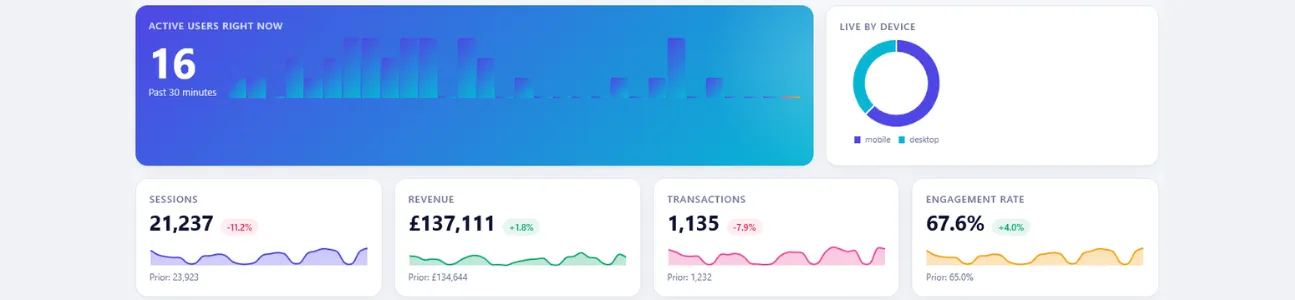
Anthropic added live artifacts to Claude Cowork in April 2026. A live artifact is a self-contained HTML page that Claude builds once and refreshes from whatever data sources you’ve wired up, every time you open it.
The obvious comparison is Data Studio, the platform Google rebranded from Looker Studio. It’s where most analytics teams already live for GA4 work. Live artifacts don’t replace it, but they handle a different kind of job well. The rest of this post covers how to connect Stape’s GA4 MCP server to Claude Desktop, what a GA4 live artifact looks like once you have one, and what each tool is good and bad at.
What Claude Cowork is
Cowork is Anthropic’s agentic desktop app, available on macOS and Windows inside the Claude Desktop client. It went generally available on paid plans in April 2026 after a research preview that began in January. Rather than answering prompts one at a time, Cowork runs multi-step work in its own session, touches local files, uses MCP connectors to reach external tools, and can run recurring or scheduled tasks without you watching over it.
If you’ve used Claude in the browser, think of Cowork as the version with hands. It can read your folders, open apps, draft documents and save them back to disk, and call connected services through MCP.
What live artifacts do differently
A standard artifact is a one-off: a chart or document Claude produces in the sidebar of the chat. A live artifact is a persistent HTML page with three properties that matter.
First, it stays saved across sessions in a dedicated Live Artifacts tab with version history. You can close the app, come back in three days, and the page is still there.
Second, it calls MCP connectors each time you open it. The artifact includes a window.cowork.callMcpTool hook that runs against whichever connectors you have wired up. Nothing is cached in the artifact itself. The page re-runs the queries when you view it, so the numbers reflect the state of your connected services at the moment of viewing.
Third, it is self-contained HTML with its own JavaScript and styling, so it can filter, sort, search and chart without a server behind it.
In practice you describe what you want once (a funnel, a pipeline view, a KPI scorecard) and Claude writes the page. You can then tweak it in conversation (“add a week-on-week change column”) and the artifact updates.
Connecting Stape’s GA4 MCP server to Claude Desktop
Several GA4 MCP servers exist, but Stape’s hosted option is the easiest place to start. You don’t need to run anything locally, you don’t need Google Cloud credentials, and the setup takes about two minutes.
Before you start, make sure Node.js 18 or higher is installed. The Stape MCP server is invoked through npx, which ships with Node. If you don’t have it, grab the LTS installer from nodejs.org. The steps below work on both macOS and Windows, but the config entry itself is slightly different on each, which is covered at the end of this section.
Here are the steps.
1. Open the Claude Desktop config file. Inside Claude Desktop, go to Settings, then Developer, then Edit Config. That opens claude_desktop_config.json in your default editor. If you ever need to find it manually, it lives at ~/Library/Application Support/Claude/claude_desktop_config.json on macOS and %APPDATA%\Claude\claude_desktop_config.json on Windows.
2. Add the Stape GA4 entry. Paste the block below into the file. If you already have other MCP servers configured, add this entry inside the existing mcpServers object rather than starting a new one.
On macOS:
{
  "mcpServers": {
    "ga4-mcp-server": {
      "command": "npx",
      "args": [
        "-y",
        "mcp-remote",
        "https://mcp-ga.stape.ai/mcp"
      ]
    }
  }
}
On Windows, the same config will fail silently because Claude Desktop uses child_process.spawn() to launch MCP servers, and that can’t execute Windows’ npx.cmd batch shim directly. Wrap the call in cmd /c:
{
  "mcpServers": {
    "ga4-mcp-server": {
      "command": "cmd",
      "args": [
        "/c",
        "npx",
        "-y",
        "mcp-remote",
        "https://mcp-ga.stape.ai/mcp"
      ]
    }
  }
}
Save the file.
3. Restart Claude Desktop. Close the app fully and reopen it. MCP servers are only loaded on startup.
4. Authenticate with Google. A browser window opens automatically, prompting you to sign in with the Google account that has access to your GA4 property. Grant access and the window closes.
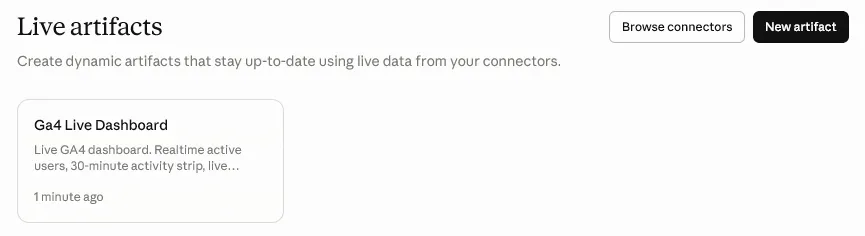
5. Verify the connection. Back in Settings, Developer, you should see ga4-mcp-server listed with a status of Running.
If it doesn’t appear, the usual fix is clearing cached auth and restarting:
- On macOS or Linux:
rm -rf ~/.mcp-auth - On Windows (PowerShell):
Remove-Item -Recurse -Force $env:USERPROFILE\.mcp-auth
Also keep MCP server names under 60 characters, since some clients truncate longer ones. If you plan to add Stape’s GTM or Server GTM connectors later, the pattern is the same, and you consolidate them all under one mcpServers block.
Building a GA4 dashboard with a live artifact
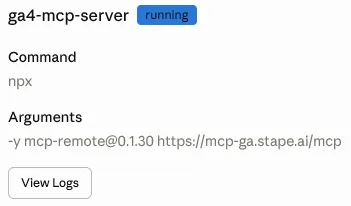
With the Stape MCP server running, the workflow looks something like this. You ask Cowork for a dashboard: acquisition channels with sessions, engaged sessions and conversions for the last 28 days, plus a realtime active users count at the top. Claude probes the connector with a small query first to see the actual response shape, writes a single-file HTML artifact that calls the GA4 MCP tools, and opens it in the sidebar.
From then on, every time you click the artifact, it re-queries GA4 and renders the current numbers. Filters, date ranges and sort orders are driven by the page itself. If you ask Claude to add a new chart or a new metric, the artifact updates in place and the old version is preserved in history.
The whole loop, from prompt to working dashboard, tends to take a few minutes rather than the few hours a comparable Data Studio setup would consume.
Where live artifacts beat Data Studio
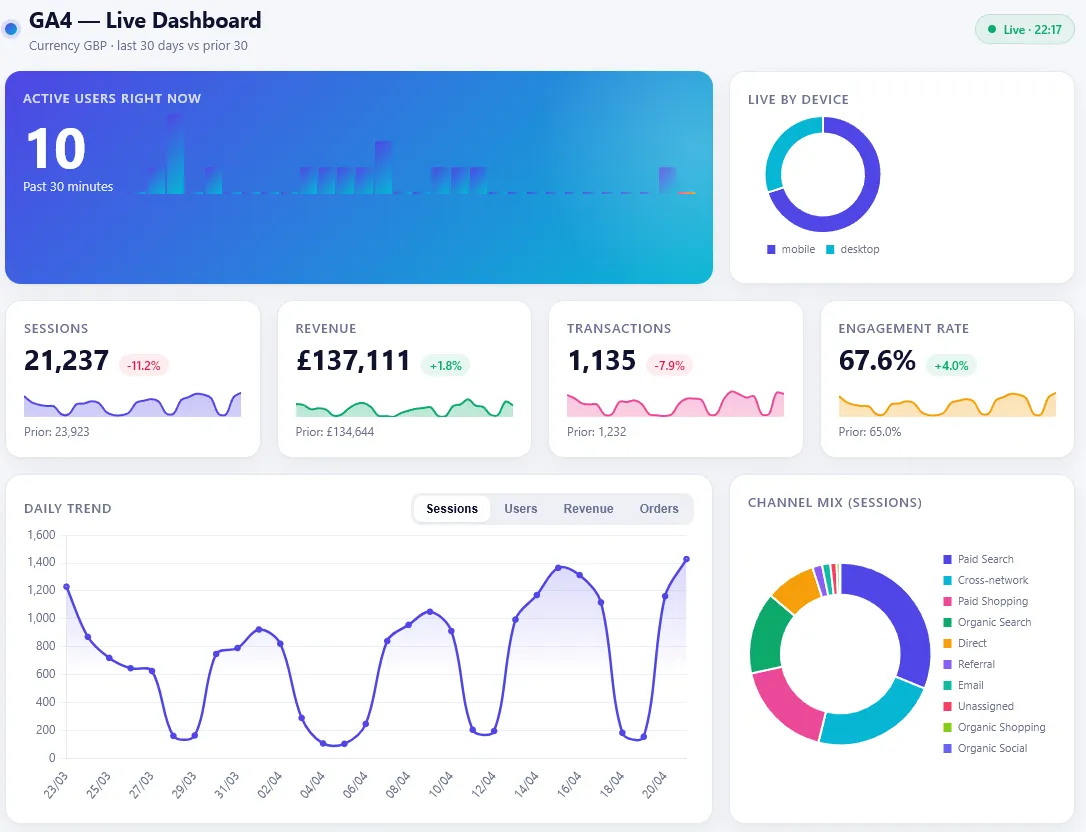
Speed of build is the obvious win. Describing a dashboard in plain English and watching it appear is a different experience from dragging components onto a canvas and debugging connector errors.
Live artifacts are also easier to personalise. You can ask Claude for a filter that doesn’t exist in Data Studio’s UI (say, a specific regex on page paths, or a custom retention bucket) and it writes the JavaScript to do it. Data Studio’s calculated fields are powerful but limited.
Cross-source blending is another advantage. Because every configured MCP connector is available to the artifact, a single page can mix GA4 sessions with Stripe revenue, HubSpot pipeline and Slack alert counts. Data Studio can blend sources too, but the setup is finicky and non-Google connectors usually cost money.
Finally, maintenance is lighter. When a metric definition changes, you tell Claude in chat and the artifact is updated. You don’t reopen a report, hunt for the field and try to remember why you set it up that way.
Where Data Studio still wins
Sharing and governance are the biggest gaps. A Data Studio report has a URL. You send it to a client, they open it in any browser, they don’t need a Claude subscription or your MCP setup. Live artifacts live inside one person’s Cowork install. There is no public share link, no embedded viewer, and no client portal.
Scale is the other weak point. Live artifacts run queries in the browser on open. If your GA4 property is busy and your connector returns a large payload, the page will be slow or hit timeouts. Data Studio’s extract mode, imperfect as it is, was built for this kind of load.
Reliability matters too. Data Studio has been in production since 2016. Live artifacts were released weeks before this post. Anthropic has not yet published an SLA for MCP tool calls from artifacts, and Cowork’s computer-use layer is still labelled as a research preview.
Cost is the final consideration. Data Studio is free. Cowork sits on Anthropic’s paid tiers (Pro plans from around £14 a month up to Enterprise pricing). Stape’s GA4 MCP is currently free to use with a Stape account, but the pattern is that hosted MCP connectors tend to move behind paid tiers once usage ramps, so it’s worth factoring into your longer term cost picture. If one person on your team needs live GA4 inside Claude, the setup is cheap. If thirty stakeholders want view-only access, Data Studio is still the obvious answer.
How to choose
The short version: live artifacts are good at the private, exploratory end of the spectrum. A founder checking morning KPIs, an analyst investigating a traffic anomaly, a marketing lead prototyping a new view. They aren’t a replacement for the weekly client report you email out on a Monday.
The teams getting the most out of this already use both. Data Studio remains the shared source of truth for stakeholders. Live artifacts sit next to it as a private workspace where you can ask odd questions of your GA4 data, build throwaway views in minutes, and keep a small number of high-value dashboards refreshed without logging into a reporting tool.